We have been using home assistant for monitoring and controlling many items in our home for a few years. This is a fantastic open source home automation system, and is ideal for monitoring energy usage. It can also be used for controlling use and charging of a battery taking into account tariffs, solar input. We also plan to use it to monitor and control the HVAC system and the hot water heat pump.
We considered a number of different solutions for battery storage, and decided to go with a Tesla Powerwall 3 solution. This is a mature and well tested system, even if we had some worries about the CEO. Our system has two Powerwalls giving 27.5 kWh of storage along with a gateway. This setup gives us whole home backup, and the inverter is built into the Powerwall.
Home assistant has a pretty good setup for monitoring energy usage documented at HA energy dashboard. The dashboard needs to be able to read out the information from the inverter, battery, grid usage, and solar production. Many battery and inverter systems are able to be integrated with home assistant in a straightforward manor. The Tesla Powerwall app which allows the user to control and readout the battery is a little more locked down.
Getting access to the Powerwall data
There are however several ways to get this data into home assistant.
- Locally read the data by connecting to the wifi which is on the Powerwall.
- Access Tesla’s developer API.
- Use a paid third party solution to access the Tesla API and get up and running quickly.
I explored, and managed to get all three of these options working, but in the end I am using the third option with my HA setup. It works flawlessly, is quite affordable, and prepares all the sensors needed to setup the energy dashboard in home assistant. The downsides of this approach are that it depends on access to the Tesla cloud, and costs a small amount of money.
If you are interested in either of the first two options, I recommend having a look at the excellent pypowerwall python library https://github.com/jasonacox/pypowerwall. This has code to access the data provided by the battery. There is also a wealth of information about how to connect to either the local wifi or the cloud.
If you want to connect to the local wifi, be sure to take a photo of the inside of the Powerwall when it is being installed. There is a sticker in there which has the SSID : (something like TeslaPW_XXXXXX) and Password on it which you will need to connect to the wifi. You can connect a computer to this wifi, and then can use the TEDAPI in pypowerwall to access the local data from your battery. This gives access to information like the power on each string of PV panels.
The quick solution – using Teslemetry
There are a lot of complications in getting this data into home assistant, but if you have enough IT skills it is doable. If you want to connect to the Tesla API without paying, you need to register on the Tesla portal (https://developer.tesla.com). This allows you to make calls and get information about your battery without paying. Again, if you have sufficient IT skills, you can do this. I set up an account, and managed to make the API calls, but opted for the easier solution in the end.
Using the Telslemetry solution https://teslemetry.com makes it incredibly easy to integrate the data from the battery into home assistant, and costs only a few dollars a month. In the end it was worth it to subscribe, and be up and running reliably and immediately rather than spending a lot of time rolling my own solution.
After subscribing to Teslemetry, and adding the integration into home assistant, I was able to setup the home assistant energy monitoring with the sensors defined by Teslemetry.
Setting up the Home Assistant energy dashboard
When you setup your Powerwall with the Tesla app, you give the system a name. You will need to edit the energy dashboard in HA, and enter 6 sensors. The sensors which are available and wher to enter them in the dashboard are (for a:
- My system Grid Imported (add to Electricity Grid/Grid Consumption)
- My system Grid Exported (add to Electricity Grid/Return to Grid)
- My system Grid Power (add to Electricity Grid/Grid Power)
- My system Battery Charged (Home battery storage/Battery systems)
- My system Battery discharged (Home battery storage/Battery systems)
- My system Solar generated (Solar panels/ Solar production)
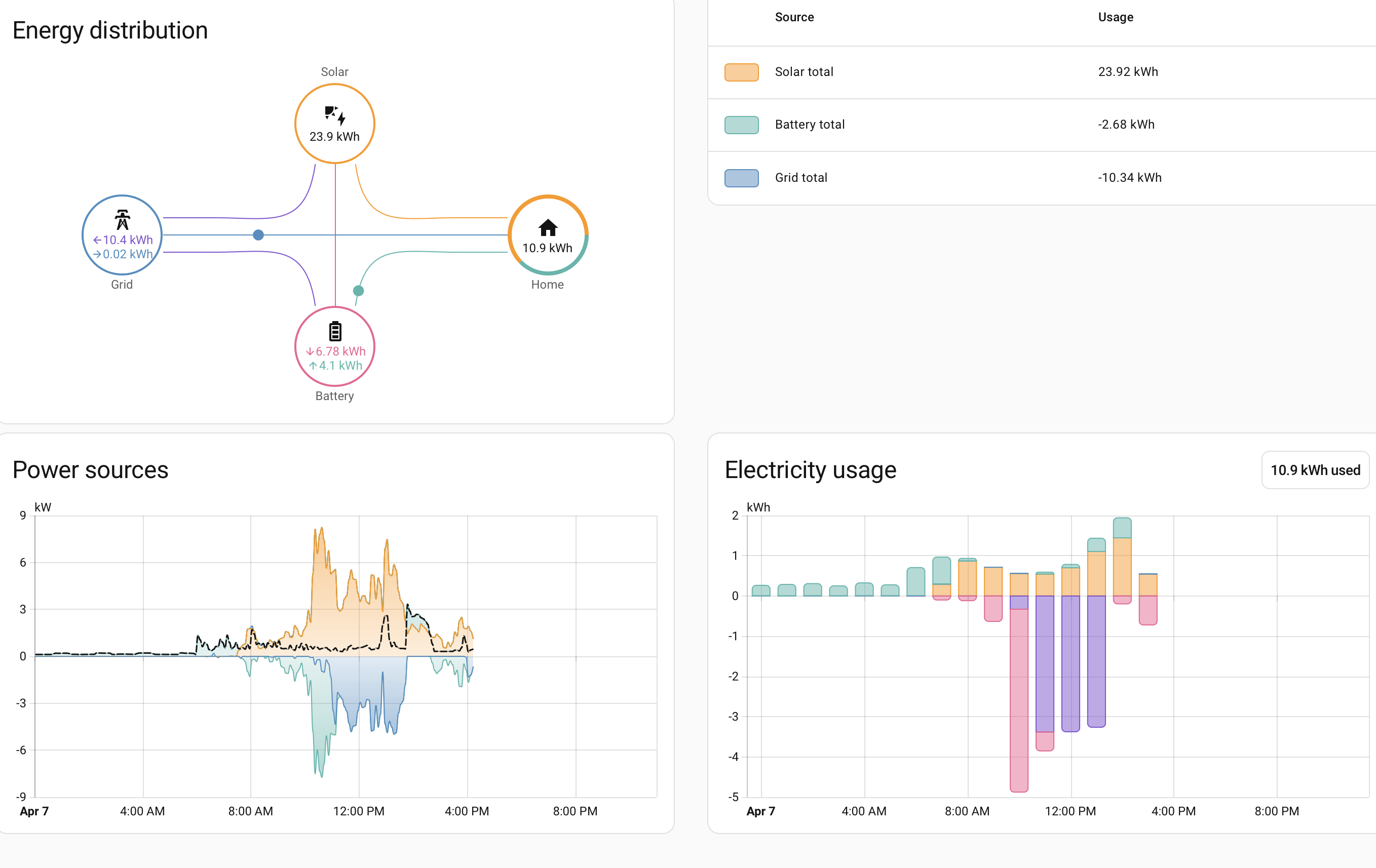
After doing this, there is lots of information provided by the energy dashboard in home assistant.
Leave a Reply